

4 Simple iPhone Tips (& 1 Instagram Tip) That Help Me
I love finding ways to use my iPhone to help streamline daily tasks. These 4 iPhone tips help me every day (in life & in parenting), plus this Instagram feed refresh tip makes me happy😊

Well, even though this past week was the first week of 2026, my new year won’t begin until tomorrow because only one of my three kids actually went back to school this past week! My oldest son N(11) went to school Tuesday but my daughter C(9) didn’t go because she had “walking pneumonia”, and my youngest son A(6) has three weeks off so he was still on break… That meant that our winter break kept going and I wasn’t able to kick off 2026 last week – but this week I will! C(9) is much better now that she’s had a few days of antibiotics so she’ll be at school Monday, and A(6)’s school starts again, so my intention setting plans and the start of organizing the post-winter break mess and clutter starts this coming week – I can’t wait to get things going!
In between caring for C(9) while she was sick and keeping A(6) busy and having fun during his last week of winter break, I was thinking about what would be helpful to write about this week. I realized that a lot of what I do to streamline the behind-the-scenes work of parenting, and all the daily tasks of modern life, relies on different iPhone tools and tricks. Since fresh ideas for how to use our devices may be helpful for our new years’ goals and intentions, I decided to share four iPhone tips that I use often (daily for most of them!) and one bigger Instagram tip that I use every few months to give me a happy refresh there.
I’ve shared a few of these ideas on my Instagram account throughout the past year, and I got great feedback because they either reinforce what people are already doing or they give them a new idea to try. So, in that spirit, I thought I’d gather what iPhone hacks I use most often here in one article – I hope you try them and that they help your days!
1. SEND A TEXT LATER
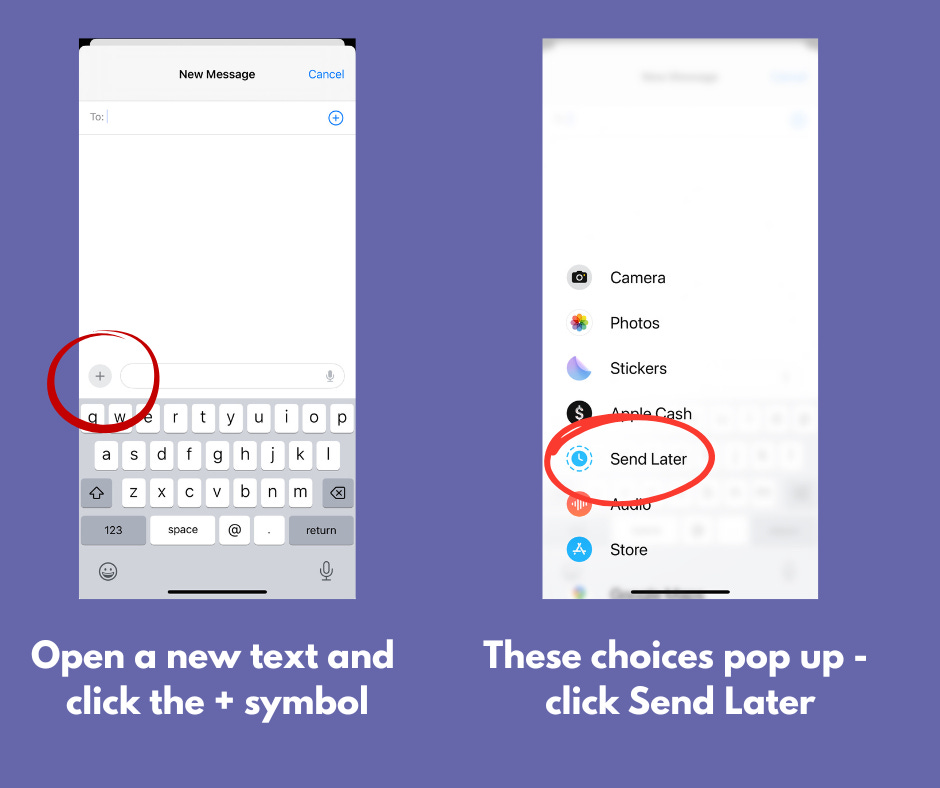
There is a “send later” option available on iPhone texts! I love using this at 3am lol. Usually when I wake up at 3am I remember something I wanted to reply to or I have an idea, and I want to text someone. But I know that texting at 3am is not very kind in case someone has their sound turned on for texts (and honestly, it does look crazy if I’m texting at 3am…).
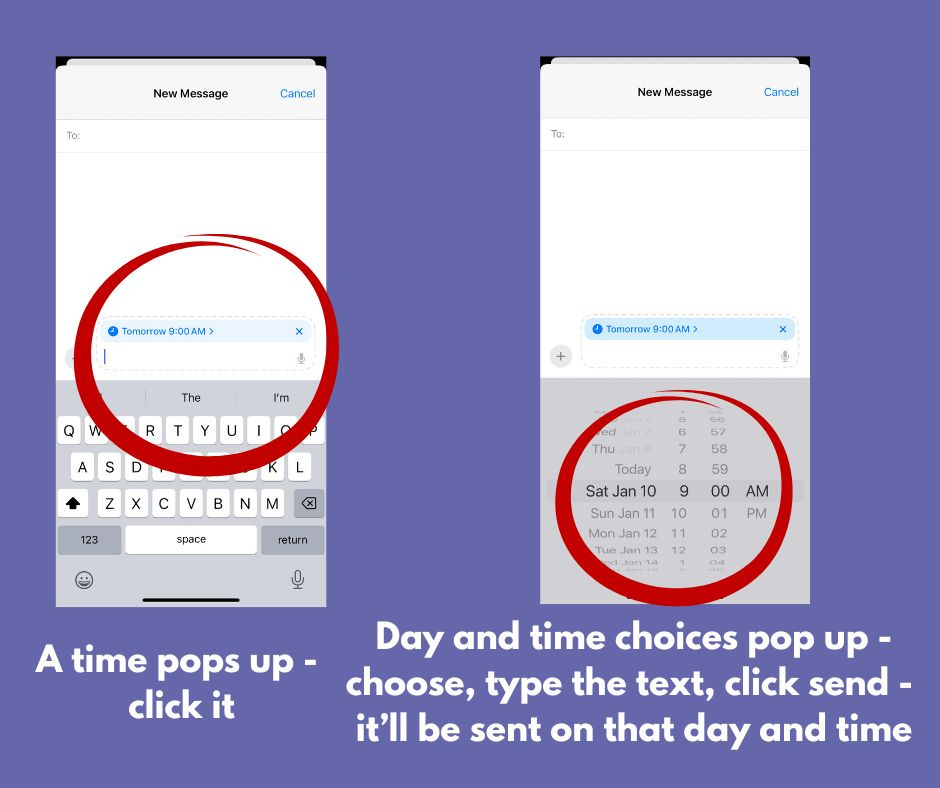
Great news is that this fall iPhone started offering a “send later” option for texts. So now I type up what I want to say at 3am and then set it to send later that day! And yes, I also use the “send later” option at other times during the day - but the biggest help has been during a 3am wakeup😉
HOW TO SEND A TEXT LATER:
2. READ A DOCUMENT LIKE A BOOK
When I buy a digital book from someone, or when I need to download a document to my phone, I was getting really frustrated that saving it to my files meant I had to scroll up and down the document – it wasn’t easy to read that way.
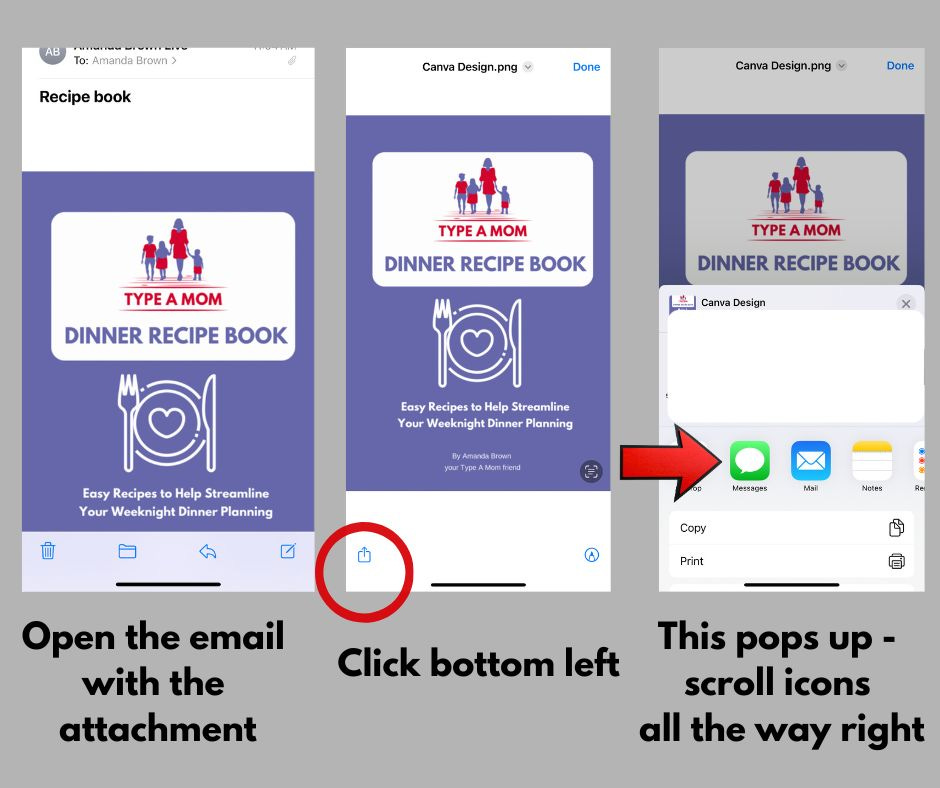
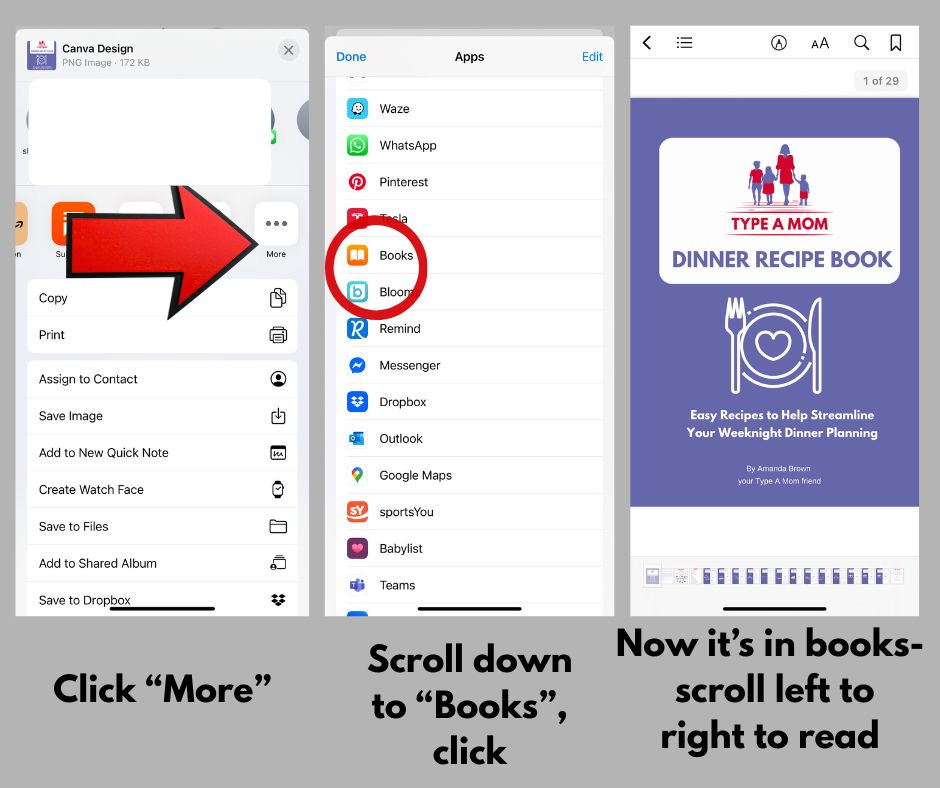
Then I tried saving a digital document to my Apple Books and it worked! Now I can read a document like a book – swiping pages to turn left and right – instead of scrolling up and down to read a document. I love using this option because it’s easier for me to read multiple pages this way!
HOW TO SAVE A DOCUMENT IN THE BOOKS APP:
3. PHONE ALARM LABELS
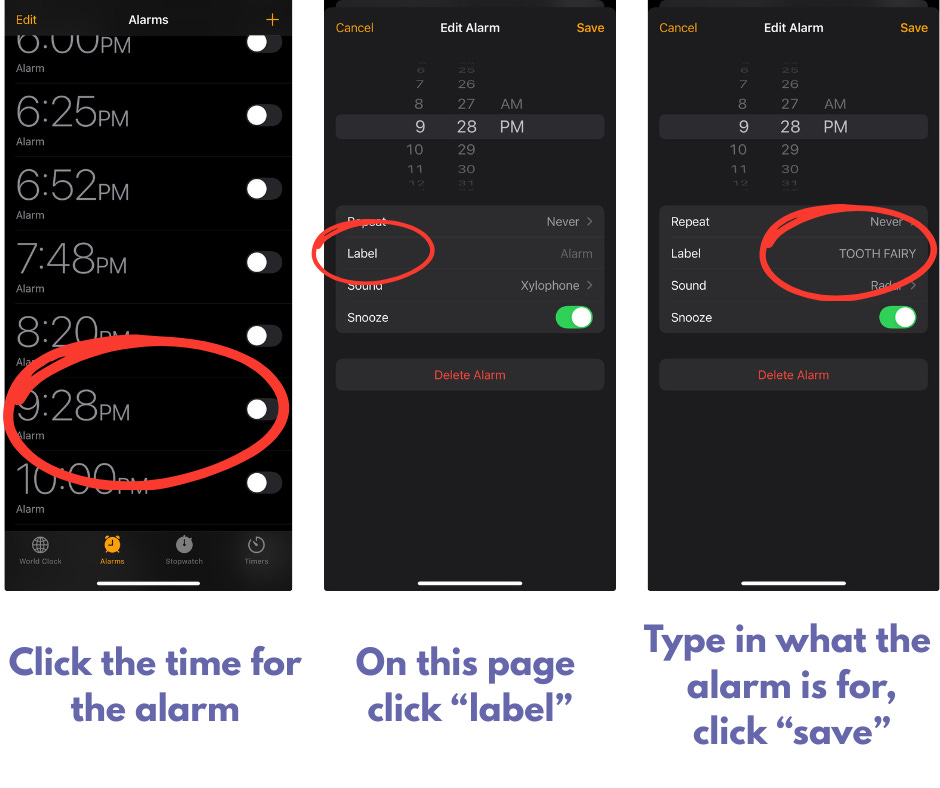
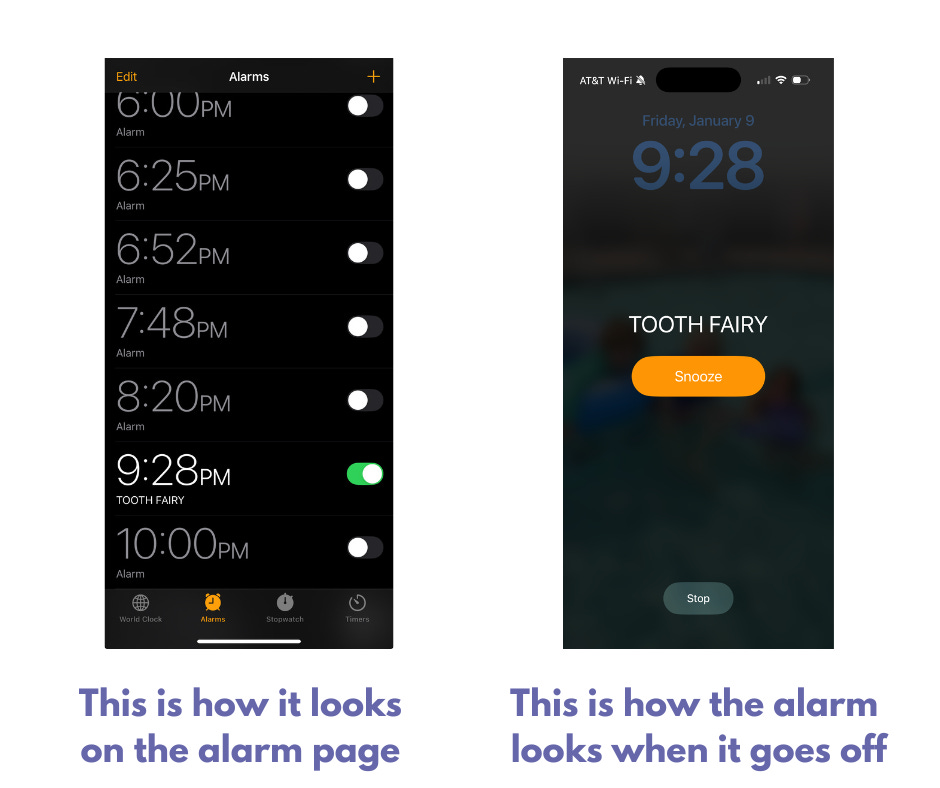
I use the iPhone alarm “label” option multiple times a day! I set alarms to remind me about out-of-the ordinary things, but the real helpful trick is I use the label option so I can remember what out-of-the-ordinary thing I must do at that time! This has been extremely helpful for events like early pickup reminders, Zoom meeting reminders, medicine timing for kids, the tooth fairy reminders, and so much more! I tell everyone I know about this tip because I love it so much.
HOW TO ADD A LABEL TO AN ALARM:
4. SAVING SCREENSHOTS TO NOTES APP
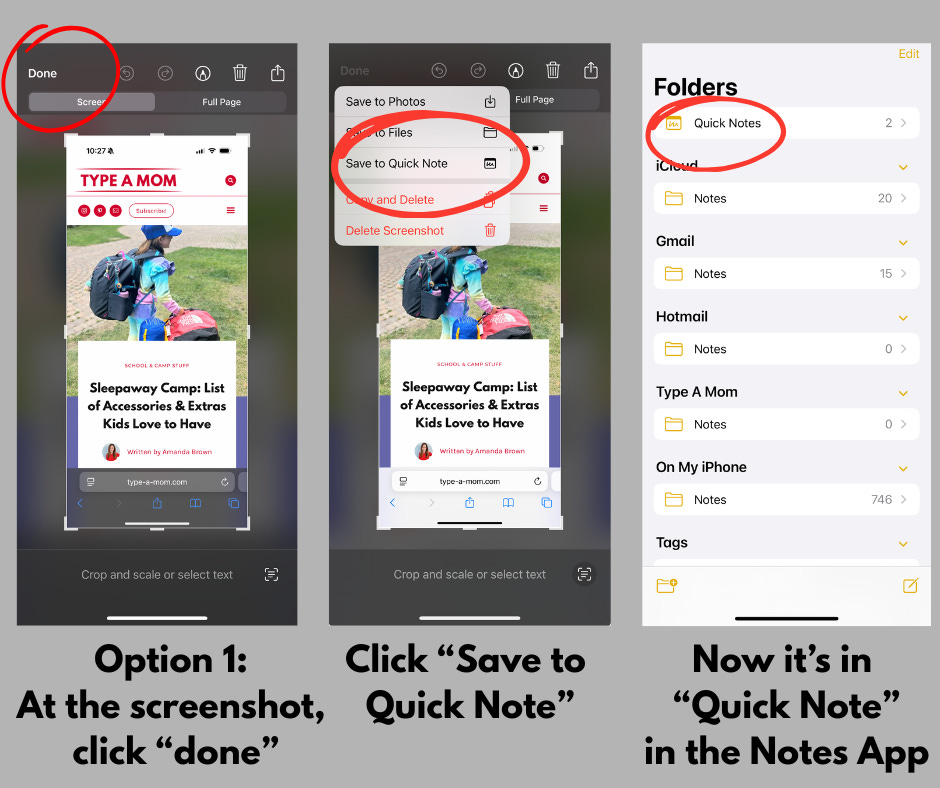
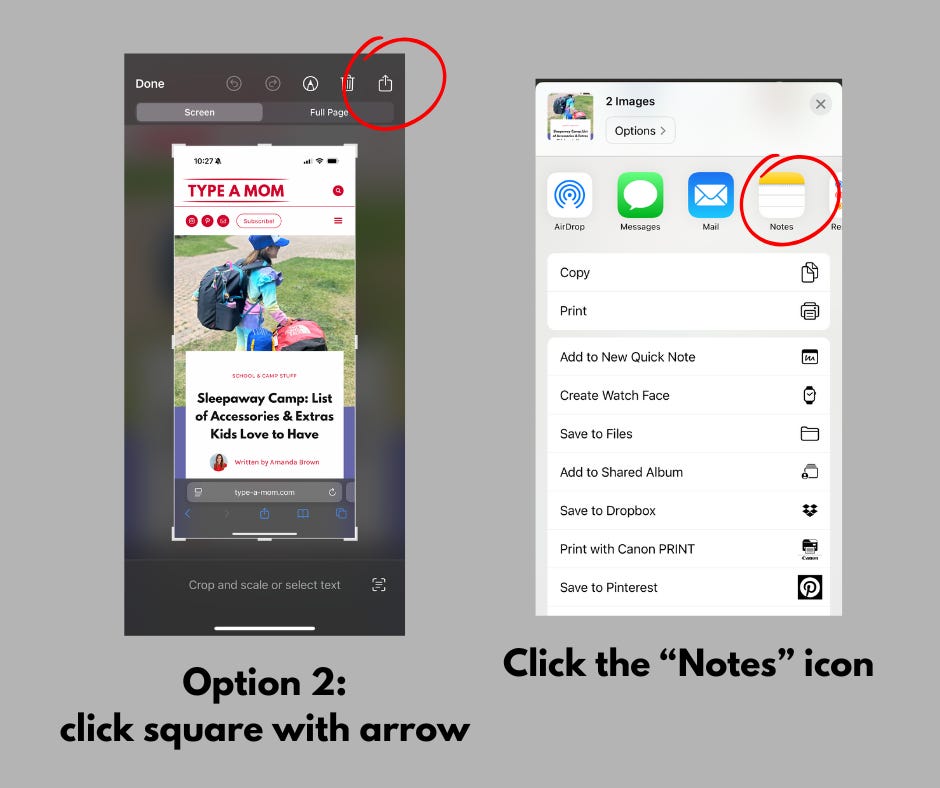
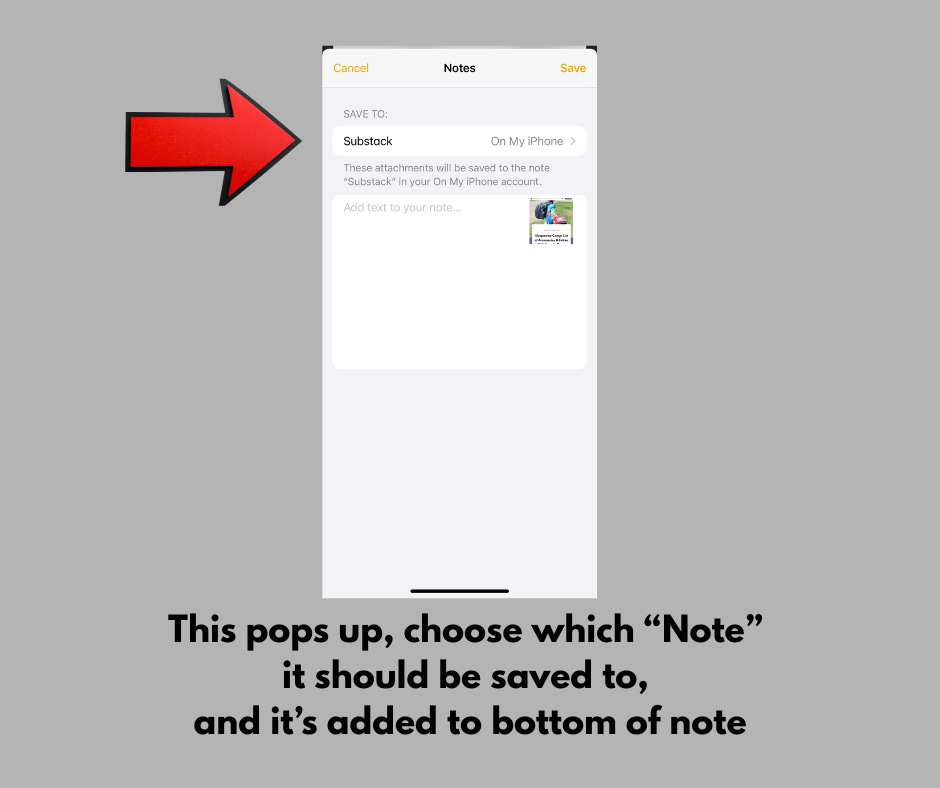
This is the newest iPhone trick I’ve been using, and I love it – a screenshot can be saved to the Notes App instead of the photos. This does many things I love, including:
It doesn’t take up space or clog my photos on my phone
I can save it to an existing note so it adds more info to whatever I’m creating and gathering in that note
I can start a new “quick note” to save them in if I have a bunch of screenshots I want to scroll through at a later date
HOW TO SAVE SCREENSHOTS TO NOTES APP:
5. CURATING AN INSTAGRAM FEED
With the start of the new year, I want to be more intentional about what I’m seeing on my Instagram account, but too often the suggested reels that show up in my feed are not what I want to see!
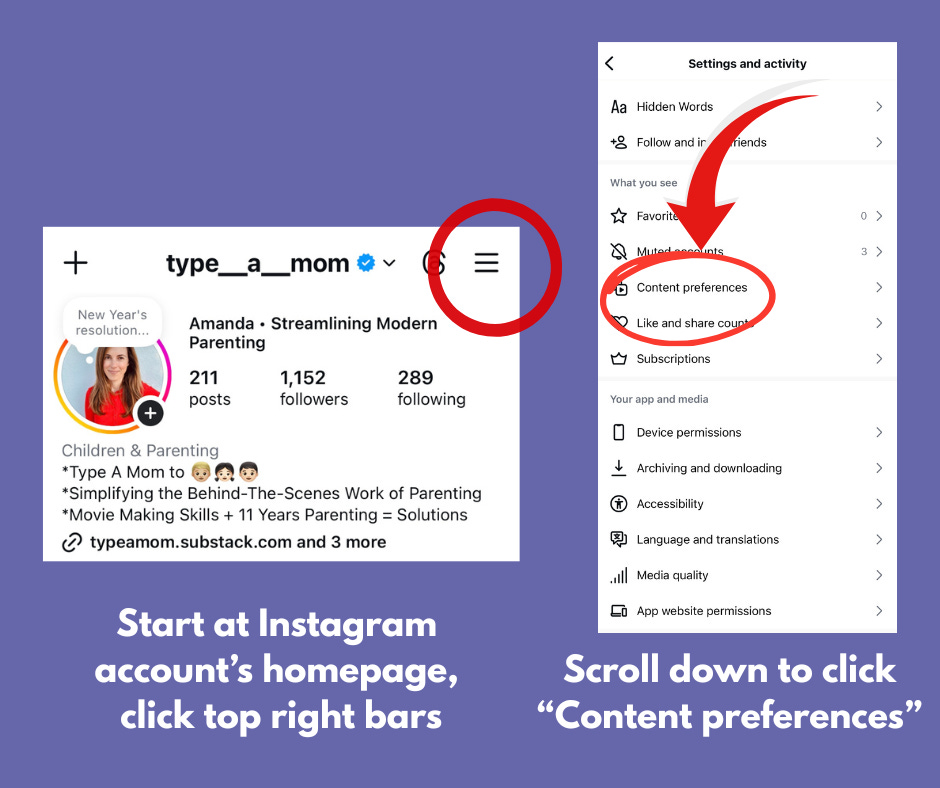
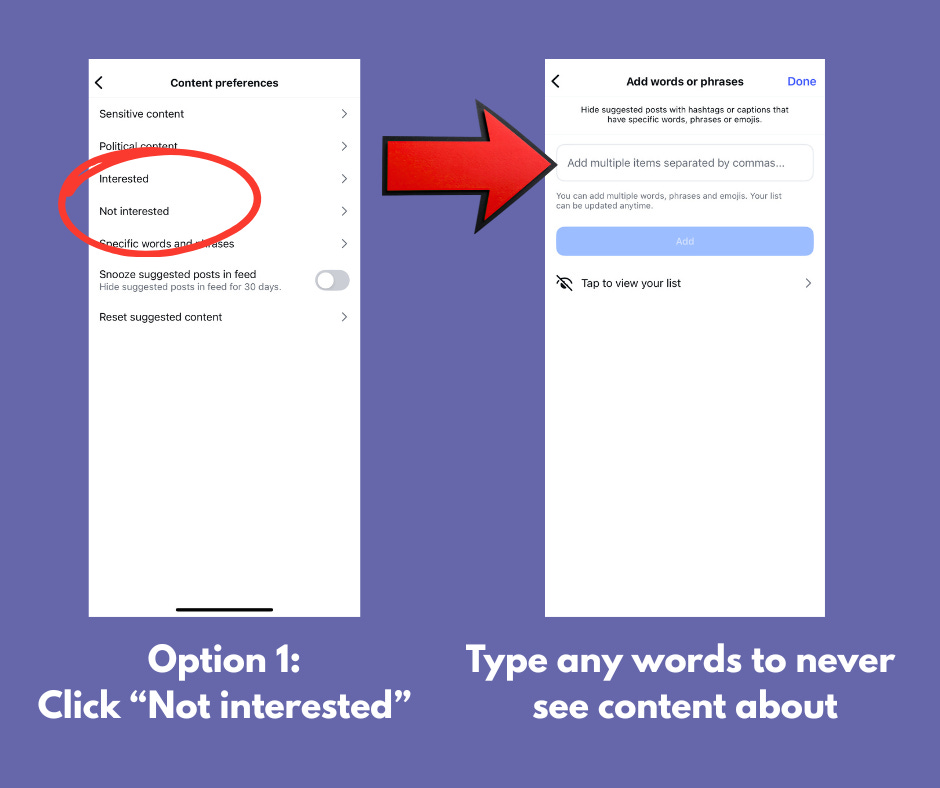
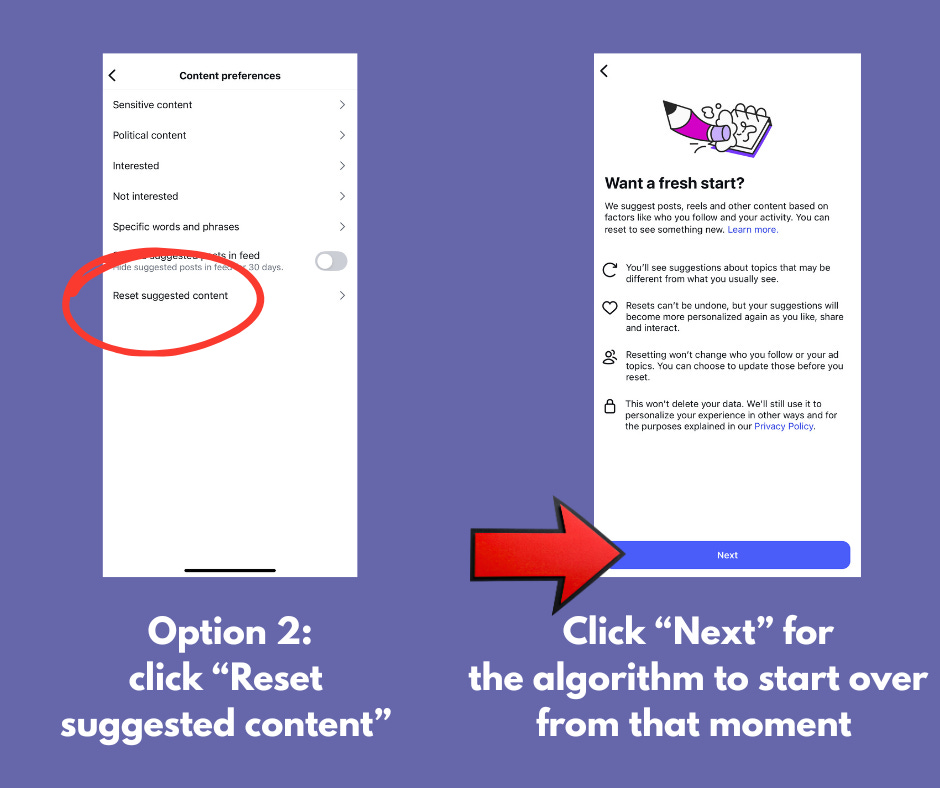
So, while this Instagram tip is one that takes a minute to do, it’s been really worth it to curate my Instagram feed because it makes Instagram more fun to look at. These are the two steps I take to curate what Instagram’s algorithm shows me in my feed:
I list the key words and phrases I never want to see posts or reels about (I LOVE this option – it’s been amazing to see how quickly it changes my feed for the better)
Doing a reset of the overall feed – I do this when my suggested reels get stuck on some weird topics and I know it’s because I spent too long looking at a random post or I clicked like on something that is not typical, so now I keep getting fed that topic. This option resets my feed so that going forward whatever I like will be what it highlights for me – it’s a clean slate from which to build a feed!
HOW TO CURATE AN INSTAGRAM FEED:
Hope these ideas are helpful and not overwhelming! And, please share what your iPhone and Instagram tips are – we could all use some fresh ideas for how to use our devices as we start off 2026!
❤️, Amanda, your Type A Mom friend
PS: Continuing this new PS section where I list three items that helped me parent this week😊 This week my top three picks are:
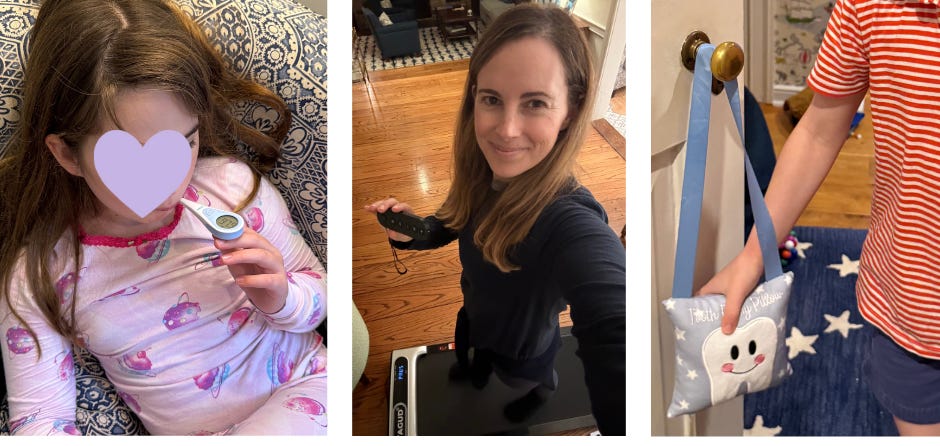
Multiple Thermometers - at the start of the school year I checked for thermometers at the house and we had them - but I forgot to check that the batteries weren’t dead! So when one kid got sick in October and I discovered that the batteries were dead, I had to order a thermometer to be delivered asap! I bought 4 so this would never happen again. Good thing I did because it helped me parent when C(9) got sick this week because I had at least one thermometer upstairs and one downstairs which made it easy for me to track how her fever was going day and night. This thermometer is what we use: Amazon delivers it quickly (same day in LA!) and it can be used orally, underarm, or rectally.
Walking Pad - I keep this walking pad (currently on sale on Amazon for $85!) under a lounge chair in our living room and I can see the playroom, living room, and part of the kitchen from it - a remote is the only way to make it move so I love that I can hide that remote away from my kids when I’m not using it - this walking pad helped me parent when I was getting cabin fever being home with a sick kid and meant I could still get in my 2026 daily goal of 10,000 steps a day💪
Tooth Fairy Pillow - A(6) lost his first two teeth this week! I bought him this pillow in anticipation of the teeth falling out and he loves it because finally he gets something that’s not a hand-me-down (third kid problems…) - and I love it because the whole point of this pillow is it hangs on the door OUTSIDE his room and the tooth fairy takes the tooth and puts money in it there - NOT under the pillow so there’s no chance of A(6) being woken up by the tooth fairy!
Always so useful. I learn something new every time you post—thanks for making life easier, Amanda!
Love this SO much! Thank you!